
Make a payment in the Patient Portal
Make a payment: select Pay now on the Home page, check the amount, then select Proceed to payment.
On this page
You start a payment from the Home page of the Patient Portal. The Make a payment page has three steps: Amount, Payment and Done.
Before you start
Only the person who received a login to the Patient Portal can pay the amount due. The amount comes from the charges your office posts in Compass Pro for the patient.
Open the payment page
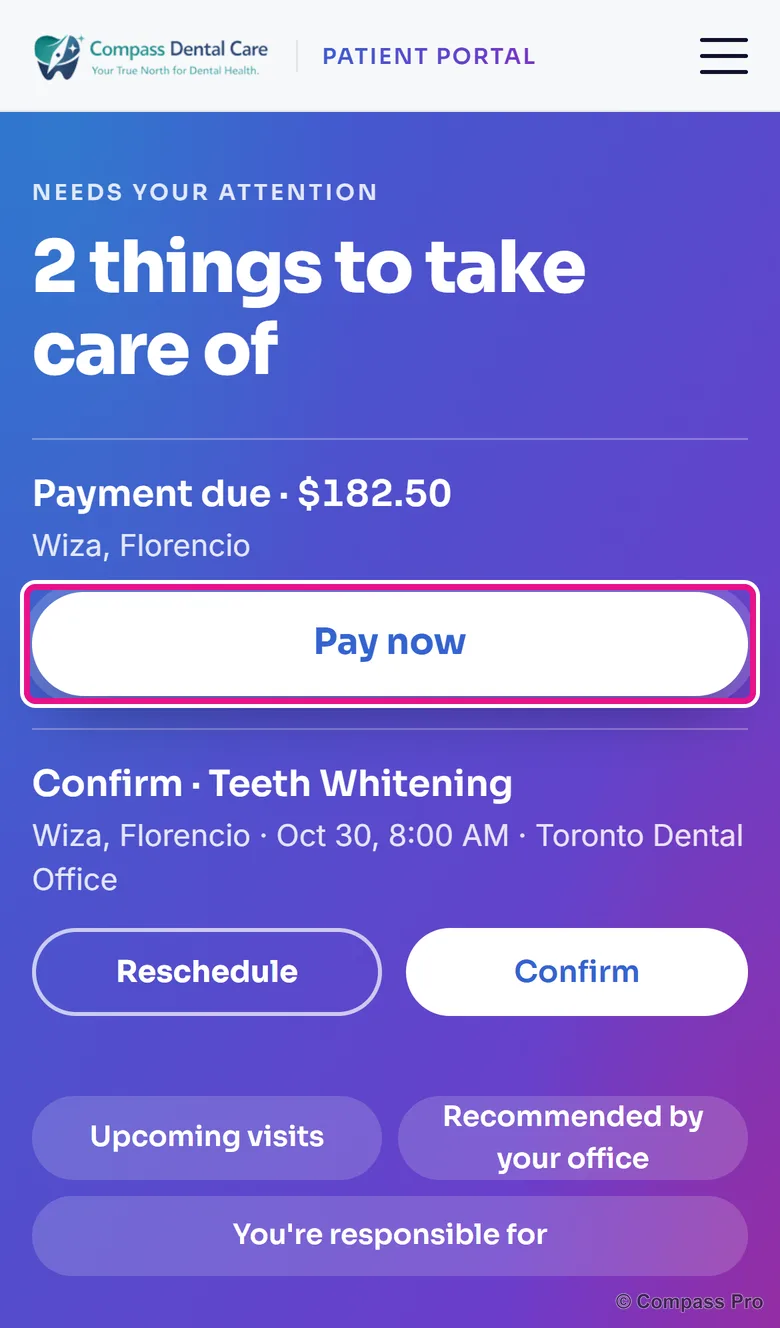
- Open Home. Under the heading about things to take care of, Payment due shows an amount and a Pay now button. When nothing is due, this block does not appear.
- Select Pay now.
Check the amount
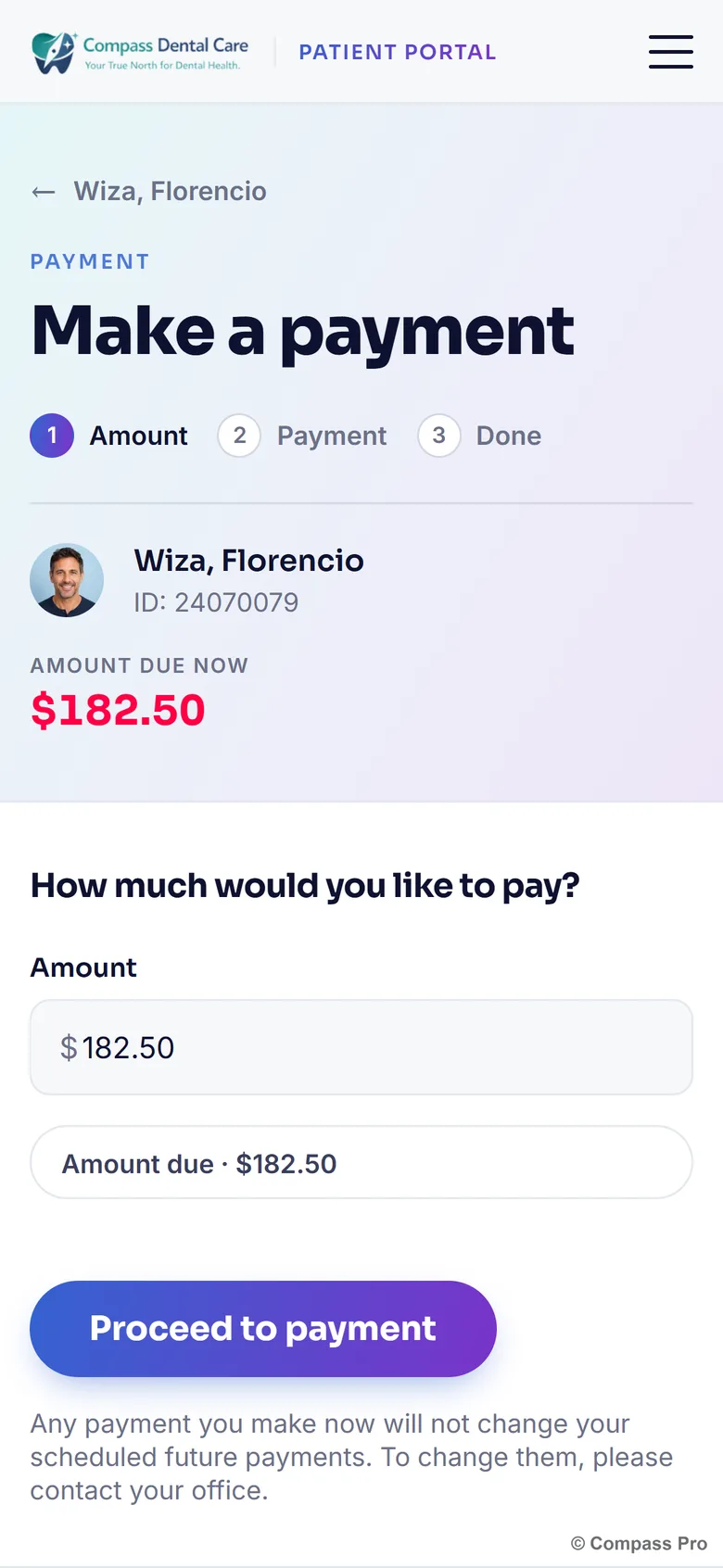
- Read Amount due now at the top of the page. It shows the person’s name, ID and the amount.
- Find the question How much would you like to pay?. The Amount field already holds the amount due.
- To pay a different amount, change the number in the Amount field.
The page also shows an Amount due button with the same figure.
If the amount is not accepted
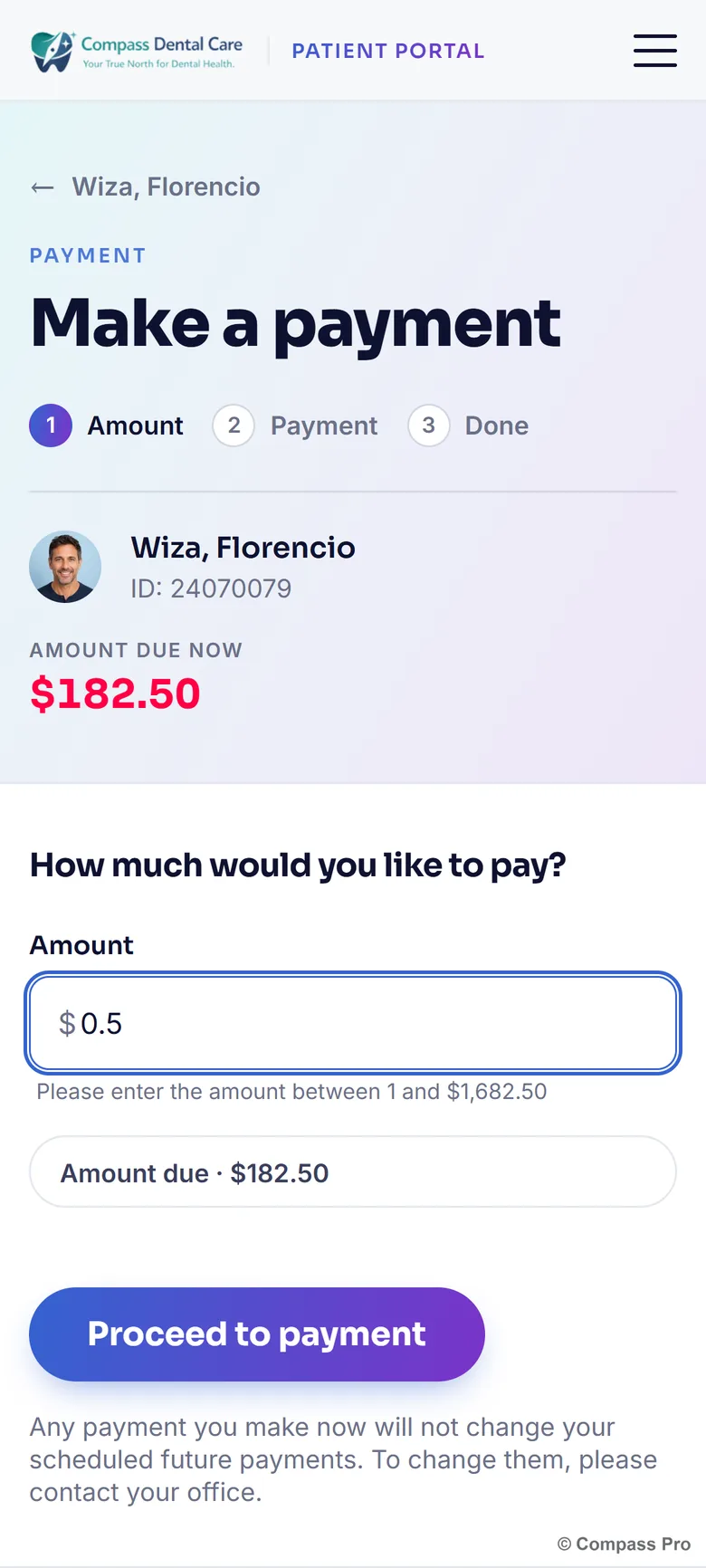
The page checks the number as you type. If the amount is below 1 or above the limit, a message appears under the field. It reads Please enter the amount between 1 and followed by the largest amount you can pay. The limit can be higher than the amount due.
Continue to the payment step
- Select Proceed to payment.
A note under the button says that a payment you make now does not change your scheduled future payments. To change them, contact your office.